Friday, 10 June 2011

Understanding peoplesoft architecture

I have written article specially for new peoplesoft dbas who most of time try to figure out how to find the details regarding a peoplesoft application. Peoplesoft application consists of database server, application server and webserver. Batch server is also present for reporting purposes.
Lets follow the top down approach and assume that you have been given a URL and are asked to find all the peoplesoft application details from it. (We are assuming you have access to all the servers and your application has a simple configuration with one webserver,one application server and one database server.)

Webserver details
Step1
URL: http://delta1:8101/psp/prod/?cmd=login

Information to gather:
  • Server name hosting our webserver    : delta1
  • Port no. on which PIA is running        : 8101
  • Peoplesoft Website name                   : prod

Step2
Log into webserver(delta1 in our case) and enter the following command.
# ps -ef|grep 8101

psoft  385244       1   0   May 18      - 17:08 java -Xms256m -Xmx256m -Dcom.sun.xml.namespace.QName.useCompatibleSerialVersionUID=1.0 -Dweblogic.Chunksize=65536 -Djava.util.logging.config.file=/psoft/weblogic/web849/psoft8101/webserv/GHRMS/applications/peoplesoft/logging.properties -Dorg.apache.commons.logging.Log=org.apache.commons.logging.impl.Jdk14Logger -Dweblogic.Name=WebLogicAdmin -Dps_vault=/psoft/weblogic/web849/psoft8101/webserv/GHRMS/psvault -Djavax.net.ssl.trustStore=/psoft/weblogic/web849/psoft8101/webserv/GHRMS/keystore/pskey -Dweblogic.ProductionModeEnabled=true -Djava.security.policy=/psoft/weblogic/web849/psoft8101/weblogic/weblogic92/server/lib/weblogic.policy -Dssl.debug=false -Dps_home=/psoft/weblogic/web849/psoft8101 weblogic.Server

Information to gather from it:
  • Owner/User of the process: psoft
User shown above has rights to start and shutdown the application. If you plan to stop/start the application you need to be logged in as this user, unless you plan to use root user to administer it.
  • Location from where it is running: /psoft/weblogic/web849/psoft8101/webserv/GHRMS/applications/peoplesoft/
Above path tells you the place where your website is installed which is our webserver home.

Get our exclusive subscription-only PeopleSoft tips once per month!

Application Server details
Step3
cd to webserver path noted in step2
cd /psoft/weblogic/web849/psoft8101/webserv/GHRMS/applications/peoplesoft/
and enter the following command.

# find ./ -name configuration.properties
./PORTAL/WEB-INF/psftdocs/prod/configuration.properties

Now get the peoplesoft website name which we noted down in the first step. In our case it's 'prod'. Now we need to open the configuration file related to it.

Step4
Enter the following command.
more [PATH OF THE CONFIGURATION FILE RELATED TO YOUR WEBSITE]

# more ./PORTAL/WEB-INF/psftdocs/prod/configuration.properties

Now that we have opened the configuration  file we'll get the appserver details from it. Parameter psserver will provide you with the application server details. It would be similar to
psserver=appserver1:9010
(To keep things simple we are considering the case of one appserver connected to one webserver)

Information to gather:
  • Application Server name     : appserver1
  • JSL Port                             : 9010

Step5
Log into appserver and enter the following command.
# ps -ef|grep 9101
   psoft  679954       1   0   May 31      -  0:29 JSL -C dom=PROD_56831 -g 95 -i 200 -u appserver1 -U /psoft/pt849/appserv/PROD/LOGS/TUXLOG -m 0 -A -- -d /dev/null -n //appserver1:9101 -m 9 -M 12 -I 5 -j ANY -x 40 -S 10 -c 1000000 -w JSH

Information to gather:
  • Owner name                    : psoft
User who has started the application server
  • Location of PS_HOME   : /psoft/pt849/appserv/PROD
Path mentioned above is the appserver directory of PS_HOME
  • Domain name                  : PROD
Application Server domain name

Database server details
Step6
Navigate to PS_HOME/appserv directory using cd command
cd PS_HOME/appserv/DOMAIN_NAME/
# cd /psoft/pt849/appserv/PROD

Open application server configuration file "psappsrv.cfg"
more psappsrv.cfg
[Startup]
;=========================================================================
; Database Signon settings
;=========================================================================
DBName= psftdb
DBType= ORACLE

Information to gather:
  • Database/Service name: psftdb

Enter the below command at the prompt
tnsping database/service name
tnsping psftdb

Used TNSNAMES adapter to resolve the alias
Attempting to contact (DESCRIPTION = (ADDRESS = (PROTOCOL = TCP)(HOST = dbserver)(PORT = 1521)) (CONNECT_DATA = (SERVER = DEDICATED) (SERVICE_NAME = psftdb)))
OK (10 msec)

Information to gather:
  • Database server host name       : dbserver
  • Port no                                    : 1521

We have backtracked our path from webserver to database server and gathered major details about webserver, application server and database server which are the main components of peoplesoft architecture.

Get our exclusive subscription-only PeopleSoft tips once per month!

Tuesday, 7 June 2011

What is a Peoplesoft Connect ID ?

We will discuss what is a Peoplesoft connect id, where it is used , how to create connect id and permission required by connect id.

What is a PeopleSoft connect id?
PeopleSoft connect id is a very important peoplesoft database id which is required for initial connection to database in PeopleSoft. It replaces the old concept of having database userid for every peoplesoft user id. A connect Id is a valid user ID that, when used during sign in takes the place of Peoplesoft User Id.
Where is connect ID used?
As mentioned above, peoplesoft connect Id is used for initial authentication with peoplesoft database. We require connect Id whenever we need to configure application server, process scheduler and configure 2 tier client like peoplesoft application designer and data mover. If connect id is not mentioned correctly you will face error while starting application server,process scheduler server & will be unable to login in app designer or data mover.

Application Server: Connect Id is entered when choosing "Configure this domain" option for any application server domain using psadmin utility.
Connect Id can also be entered directly in application server configuration file psappsrv.cfg for the domain being configured. After making changes to psappsrv.cfg file , appserver needs to be configured again using psadmin so that psadmin picks up new settings as mentioned in "psappsrv.cfg" file.
Process Scheduler Server: Similar to application server configuration, connect id is used in process scheduler configuration as well. Connect Id can be entered in process scheduler configuration file "psprcs.cfg" as well.
2 tier client eg. PeopleSoft Application Designer, Data mover: As these 2 tier clients also connects with database so connect id is also required to be configured for these. To configure this we need to go to the configuration manager which can be accessed via installed peopletools workstation. Enter values of connect id and password on the startup tab of peoplesoft configuration manager.

If you don't specify connect id , system will assume that you are trying to access peoplesoft using 3 tier access. Learn how to setup 3 tier connection in peoplesoft.

Get our exclusive subscription-only PeopleSoft tips once per month!

How to create a connect Id?
While creating a new database, connect id is created using connect.sql script which is present in PS_HOME\scripts\nt\ folder. By default 'people' is connect id, although a new connect id can be created any time later.

What are the permissions required for connect id?
For initial connection with peoplesoft database, connect id needs to have read only access to three major peoplesoft tables i.e PSSTATUS, PSOPRDEFN and PSACCESSPRFL. Usually this access is also granted as part of database installation using grant.sql which is also present in PS_HOME. You can also grant access by running the below commands.
GRANT SELECT ON PSACCESSPRFL to people;
GRANT SELECT ON PSSTATUS to people;
GRANT SELECT ON PSOPRDEFN to people;


If you still have any questions, please leave some comments here or for quick response like our facebook page and ask your question there.

Friday, 20 May 2011

tpsvrinit() failed: Error starting minimum number of handlers

Unable to start application server and TUX Log shows below jolt error 1008

JSH.1663138.1.-2: JOLT_CAT:1030: "INFO: Jolt Handler joining application" !JSH.1663138.1.-2: INFO: JOLT Handler version-BEA Jolt 9.1 !JSH.1663138.1.-2: JOLT_CAT:1008: "ERROR: Could not establish listening address on network 0x000223f1a51a9750" JSL.557108.1.0: JOLT_CAT:1079: "ERROR: Error starting mininum number of handlers" JSL.557108.1.0: LIBTUX_CAT:250: ERROR: tpsvrinit() failed

It happened after I recreated a domain configuration of which was messed up. After creating new domain when I started the application server in parallel boot all processes came up except JSL.
In the Tux Log when I saw this error my eyes got struck at this line.
JSL.557108.1.0: JOLT_CAT:1079: "ERROR: Error starting mininum number of handlers"

I opened the configuration file and checked the Min /Max number of Handlers which were 9 and 12 respectively. I wondered that as these settings were default for the domain type then why it isn't able to start JSL with minimum handlers. I changed the settings for min and max numbers of handlers and tried to start the appserver but nothing worked out. Finally I decided to change the JSL port and once I changed the JSL port my appserver booted up perfectly.

Thursday, 19 May 2011

LDAP Authentication Failed

We have been facing issue related to LDAP authentication quite frequently. PeopleSoft User ids like 'PS' ,'VP1' works fine but whenever a user tries to signon using his/her universal user id he/she gets error "Invalid Password". Few of the users also tried to logon after changing their password but no success.
After doing much of head scratching we found that it's a very small issue related to configuration files of application server. psappsrv.env file is the configuration file which contains the environment information like PS_HOME of the application server. It also contains LIBPATH for other required programs like tuxedo, cobol, database client as well as for LDAP. Due to Oracle bug after appserver is reconfigured LIBPATH variable gets changed and needs to be updated to reflect correct changes.


LIBPATH parameter before change


LIBPATH parameter after change


(Please note the semicolon ':' after /psoft/oracle/lib path)
After adding the semicolon, please save psappsrv.env file and restart the application server.
NOTE: PLEASE DO NOT RECONFIGURE THE APPLICATION SERVER AFTER MAKING THE CHANGES OR IT WILL BE LOST

Every time appserver is configured for changing other parameters, psappsrv.env needs to be updated again.


Tuesday, 5 April 2011

HTTPClntLogin: Login rejected with code: 'Failed', reason: java.net.ProtocolException: HTTP tunneling is disabled

We faced an error where users reported that they are unable to login into peoplesoft application and getting "Invalid userid/password" error. Few users changed their passwords and were able to login on first attempt. If they try to login time , they again get the invalid login error.
When weblogic logs were checked for any errors, below errors were shown

Error in Weblogic Admin server logs
#### <[ACTIVE] ExecuteThread: '0' for queue: 'weblogic.kernel. Default (self-tuning)'> <> <> <> <1302018606842> <000000> is disabled at weblogic.rjvm.http.HTTPServerJVMConnection.acceptJVMConnection(HTTPServerJVMConnection.java:88) at weblogic.rjvm.http.TunnelLoginServlet.service(TunnelLoginServlet.java:80)

Solution:
We upgraded our Weblogic server to Weblogic 9.2 MP3 Patch 12 few days ago. Oracle has delivered the fix for this isssue in one of these patches for MP3. If your weblogic is already updated with latest fixes then one has to enable tunneling via weblogic admin server console.
Login into the Weblogic admin server console and navigate to Enivronment > Servers
Choose the Weblogic Admin server option. Then go to Protocol tab > General Tab and check the box against "Enable Tunneling".


Save and activate the changes. No restart of webserver is required for these changes.
Also remember to do these settings everytime domain is reconfigured.

Tuesday, 13 July 2010

Finding WSH (Work Station Handler) Port in PeopleSoft

For 3 tier access using application designer we need to configure WSL port and start the same. using psadmin. But WSL after listening the request from the client, hands it over to WSH i.e Work Station handler. We can specify WSL port no in Appserver configuration but WSH is alloted any available port no. near in series to WSL port.

To find out the port no on which WSH is running and connected client machines, please run the following command.
for eg. our WSL port is 7890
netstat -a | grep 78[0-9][0-9]


In the output window, we can see that 7892 port no is also shown with a connection status of ESTABLISHED for 3 client machines. So we can say that WSH port no being used is 7892.
WSL i.e Work Station Listener is ready and listening for more client requests.

If you want to learn how to setup 3 tier connection using application designer, please go through my past blog enteries.

Monday, 12 July 2010

Generating Key Store and Trust Store using Keytool

What is a keytool?
Keytool is a key and certificate management utility. It enables users to administer their own public/private key pairs and associated certificates for use in self-authentication. It also allows users to cache the public keys (in the form of certificates) of their communicating peers.

What is a keystore?
Keytool stores the keys and certificates in a keystore. The default keystore implementation implements the keystore as a file. It protects private keys with a password. A keystore contains private keys, and the certificates with their corresponding public keys. A keystore is a database of key material. Key material is used for a variety of purposes, including authentication and data integrity. There are various types of keystores available, including "PKCS12" and Sun's "JKS.

In PeopleTools 8.49 keytool is located in PS_HOME/jre/bin

Generating public/private key pair using keytool
keytool -genkey -alias hrms -keyalg RSA -keystore pskey.keystore -storetype JKS

hrms - it is alias name, any name can be entered to identify the server or instance
pskey.keystore - name of the keystore

After running this command , several user input are required regarding the site to generate the keypair. These values are unique for every site.
The keypair that is generated has both public and private key combination. If we want to share out public key with other sites for authentication and communication purposes we need to export the public key from the keystore and share it. Other party needs to import this public key in their keystore.

Exporting public key from keypair
keytool -export -alias hrms -keystore pskey.keystore -rfc -file pshrms.cert
Enter keystore password:

Public key is exported in a form of certificate file which can be shared with another party. While exporting public key, password for keystore is required that was created in previous command.
This is also a self signed certificate. Ideally one should a signed certificate from a CA eg. Verisign, Geo Trust etc.

What is a TrustStore?
A truststore is a keystore which is used when making decisions about what to trust. If you receive some data from an entity that you already trust, and if you can verify that the entity is the one it claims to be, then you can assume that the data really came from that entity.
An entry should only be added to a truststore if the user makes a decision to trust that entity. By either generating a keypair or by importing a certificate, the user has given trust to that entry, and thus any entry in the keystore is considered a trusted entry.

Creating TrustStore and importing public key

keytool -import -alias hrms -file pshrms.cert -storetype JKS -keystore hrms.truststore

Using the above command, you can also import public certificates from other sites.

To view contents of a cert in keystore
keytool -printcert -file pshrms.cert


Read more about keystore, PKI and public key at these links:
http://en.wikipedia.org/wiki/Public_key_infrastructure
http://download.oracle.com/docs/cd/E17476_01/javase/1.3/docs/tooldocs/win32/keytool.html
http://en.wikipedia.org/wiki/Public-key_cryptography

Friday, 9 July 2010

Using Find and Grep together


 find ./ -name configuration.properties | xargs grep -H "9030"

Wednesday, 21 April 2010

Creating public synonym of all the tables under SYSADM schema

Creating public synonym for a single table is easy in oracle but at times we might  need to create public synonym for all the tables under a schema. In
Peoplesoft, we might use it for below purpose:
        a. To help other Database users to directly access SYSADM tables without  prefixing owner name eg. sysadm.PSOPRDEFN.
        b. To create 2nd access id and granting rights on tables of primary access id.

1. Generating Script for Creating Public synonyms
        Open the SQL Tool and run the following commands.

        SQL> Spool synonyms.sql;

        SQL> select 'create public synonym ' ||table_name||  ' for ' ||owner||'.'||table_name ||';' from dba_tables where owner='SYSADM';

        SQL> spool off;

        Open synonyms.sql in a text editor.
        This file would contain the sql to create public synonym for all the tables in SYSADM schema.There would be multiple entries as shown below
        'CREATEPUBLICSYNONYM'||TABLE_NAME||'FOR'||OWNER||'.'||TABLE_NAME||';' .
        These entries can be simple replaced with blank space.

        We are left with script that be executed to create public synonym of all SYSADM'S table.

2. Granting rights on these public synonyms to another userid.

        SQL> Spool grantsyn.sql;

        SQL> select 'grant select on ' ||table_name|| ' to sysadm2 ;' from dba_tables where owner='SYSADM';

        SQL> spool off;

        OR

        SQL> Spool grantsyn.sql;

        SQL> select 'grant select on ' ||synonym_name|| ' to  sysadm2;' from dba_synonyms where owner='SYSADM';

        SQL> spool off;

3. Run synonyms.sql
4. Run grantsyn.sql

Tuesday, 13 April 2010

Using Putty with XManager

1.Installing and Starting Xmanager
Download the Xmanager and install the software on windows machine where graphical display is required. After installation is complete, go to Start > Programs > Xmanager3 > Xmanager – Passive
This will start the Xmanager is passive mode and xmanager will run in background.

2.Configuring Putty
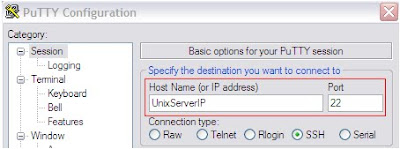
Go to Session and enter the hostname of the server. Make sure SSH is chosen as Connection Type.

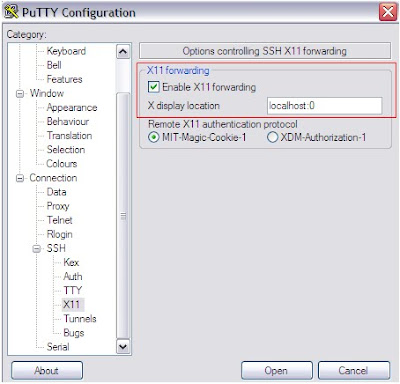
Go to SSH – X11 and Enable X11 forwarding. In X display location,enter localhost:0. Hit Open.

3. Using putty for graphical display
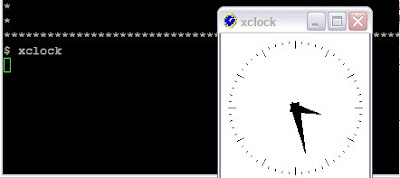
Login into the server and start xclock. Output will be a graphical clock displayed on the local windows machine.

This completes the configuration of Putty for graphical display with Xmanager.

Monday, 5 April 2010

How to find number, and user for failed login attepts in PeopleSoft

In log file APPSRV_MMDD.LOG (located in <PS_HOME>/appserv/<DOMAIN_NAME>/logs, note each successful or failed login attempt. 
See example below:
PSAPPSRV.3644 (21) [03/26/08 09:43:38 GetCertificate](3) PeopleSoft ID and Password authentication failed. Invalid password for user VP1@kdriver-us.us.oracle.com.
PSAPPSRV.3644 (21) [03/26/08 09:43:38 GetCertificate](1) (NET.502): VP1@kdriver-us.us.oracle.com is an Invalid User ID, or typed the wrong password.  User ID and Password are required and case-sensitive.  Make sure typing in the correct upper and lower case.

Monday, 22 March 2010

Information Center for PeopleTools 8.5


Oracle Metalink has Information center for all the PeopleTools Releases that consists of all the information regarding particular PeopleTools

Link for PT 8.5 Information Center
https://support.oracle.com/CSP/main/article?cmd=show&type=NOT&id=1073297.1

Wednesday, 3 February 2010

Weblogic Study Material


http://download.oracle.com/docs/cd/E13222_01/wls/docs81/index.html#1123978

Wednesday, 20 January 2010

Thursday, 10 December 2009

Windows Shortcuts -1

appwiz.cpl     - Add Remove Programs
sysdm.cpl     - System Properties
regedit          - Registry
control panel - Control panel
iexplore        - Internet Explorer
sysdm.cpl     - to open system properties
winmsd.exe   - to see system information (eg. 32bit or 64 bit, other hardware details)

How to Disable Browser Caching in PeopleSoft

A browser will cache various pages and states in memory to increase performance. It may be necessary to disable these performance features on the browser for security reasons. Note that once caching is disabled, the Back button on the browser stops working in PIA.
To disable caching:
1. In PIA, navigate to PeopleTools, Web Profile, Web Profile Configuration.
2. Select the web profile that you want to configure; for example, PROD.
3. Select the Caching page.
4. Make sure that the "Cache Generated HTML" and "Cache Homepage" check boxes are both cleared.
5. Save your changes

Wednesday, 2 December 2009

PIA login page shows intermittent behaviour

After entering the login details on the PeopleSoft PIA page, browser shows blank page and URL keeps on blinking intermittently in the address bar at the bottom
------------------------------------------------------------------------------------------

Below steps are suggested to resolve this issue.
1. Please make sure the system time of the local client machines is correct and synchornized with PeopleSoft Server. In case the time difference is more than session time out set at webserver ,user IE will keep on looping after the login screen.
2. In your browser, check the Internet Options > Connections > Lan Settings and see whether there is any proxy server specified there.
3. Try setting Security Medium-low for local intranet, Low for trusted sites.
4. Add the Authentication Domain into the Exceptions for use of the Proxy.   In IE, >  Connections>  LAN Settings > set the *.AuthDomain to  Proxy  Exceptions.
5. Disable all browser popup blockers.
6. Go to Tools > Internet Options > Advanced and Hit Restore Defaults.
7. Try turning off HTTP 1.1 Settings from the Advanced Tab.

Tuesday, 17 November 2009

How to do ftp the files between 2 servers.

For eg. We have to ftp a file abc.dmp
Source Server A : /dev1/mydump/abc.dmp
Target Server B : /dev1/urdump/


Putting files from Source Server to Target Server.
1. Telnet and login into the Source Server A
2. CD to source directory
cd /dev1/mydump
Use the below commands to ftp the files
3. ftp targetservername
4. Enter the login details for the target server
5. After successful login enter the below commands on ftp prompt
bin (Press Enter)
hash (Press Enter)
prompt (Press Enter)
6. CD to target directory
cd /dev1/urdump
7. mput abc.dmp
Ftp will start and progress will be shown by display of hashes

If we need to get a file "cde.dmp"from target server, use the following command
mget cde.dmp

8. To leave to ftp session, enter the below command
bye

Wednesday, 11 November 2009

ORA : 12541 No listener error while logging in Application Designer

When trying to connect to Server from Client machine using Application Designer, No listener error was faced.
Tried the Following:
  • tnsping to the DB was working fine
  • Able to login in the Sql tool
  • Able to login into the Data Mover
  • Uninstalled the workstation and reinstalled it.
  • Cleared Cache of Application Designer
  • Found no specific error message in the Trace logs
  • Tried Creating a new profile and checked the path for Oracle Binaries

Solution:
Generally this error is faced when Listener is not running on the DB server. But since tnsping and data mover login are working fine, so there is no issue with listener.
After doing lot of debugging ,this issue was resolved after disabling the firewall of the client system. Firewall was blocking the Application Desinger connectivity of the client machine
with the DB Ser ver.

Tuesday, 27 October 2009

Accessing PeopleSoft Application in 3 tier Mode


-->
PeopleSoft Application can be accessed in 3 tier mode using Application Designer. 3 tier connectivity means connecting to PeopleSoft Database via Application Server.
# 3 tier mode is very fast as compared to traditional 2 tier connectivity with DB because in this case no direct connections are established with DB. Also over WAN networks 3 tier connectivity is recommended.
# It is also used for Debugging purposes.
# Application Designer Connects to Application Server using WSL port that is mentioned in the application server configuration.
# Tuxedo should be installed on the client machine to connect with the Application Server.
Oracle client is not required for 3 tier connectivity.


In PT 8.48 , PeopleSoft Application can be accessed following the below steps:
1. Enabling WSL Server and entering Port Details
a. Start psadmin
b. Go to Domain Configuration Menu and enable WSL Service
c. Enter WSL Port in Serial No 24. (Make sure this port is not used by any other application)


-->
Start the Application Server.
2. Creating a new Profile in Configuration Manager
Open the Configuration Manager from the Client Machine from where developer will access the application designer in 3 tier mode.
Go to Profile Tab and click on create


-->
Enter the New Profile Name and Click Next

-->
Choose “Application Server” as Connection Type and Enter the details
Application Server Name : Enter the Application Server domain name
Machine Name : Enter the Application Server
-->Port Number : Enter the WSL port for this App. Server domain


-->
Hit Set after entering the above details. Click Next
Enter the Process Scheduler Path for different files and Click Next


-->
Enter other details for nvision and common and hit next . Finish the setup
3. Login into Application Designer in 3 tier
Open the Application Designer signon Screen and choose Connection Type as Application Server.

-->
Choose the Application Server Domain name and Enter the login details.


--> -->(If Connection Type is disabled, make sure to enable it from the Configuration Manager by checking “Override Database Type”)


-->
You will be able to enter into Application Designer in 3 tier mode.


-->

Get our exclusive subscription-only PeopleSoft tips once per month!

Get our exclusive subscription-only PeopleSoft tips once per month!

How was the blog? Help us in getting better